API link extraction
The IP whitelist allows requests from approved IP addresses to access the Rotating Datacenter IP pool through an API extraction link. This guide explains how to use Socks5 Rotating Datacenter IP with whitelist authentication.
Purchase Package
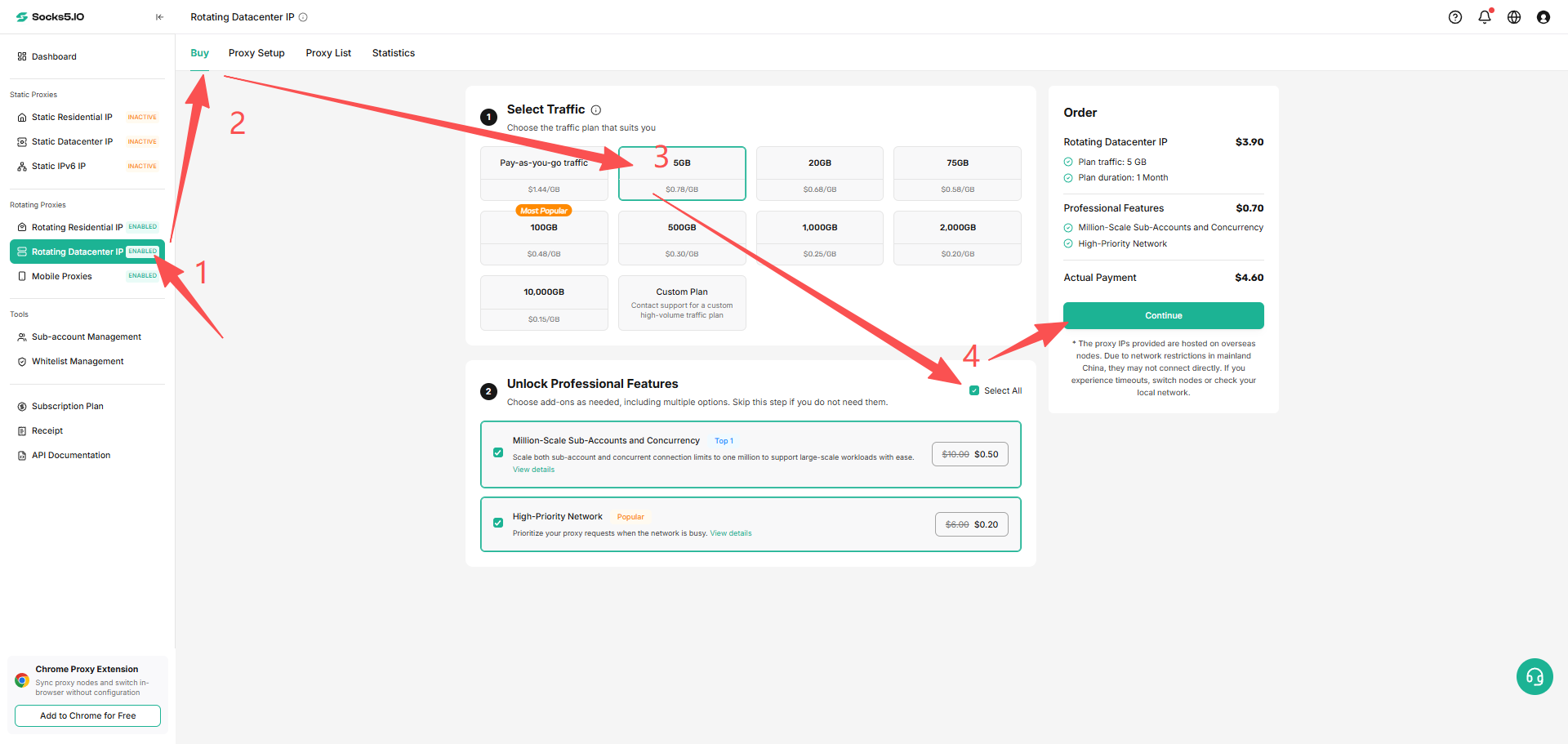
From the dashboard, select Rotating Datacenter IP, open the Buy tab, choose the package that meets your needs, and complete payment to activate the service.
Whitelist IP settings
Add whitelist IP
Navigate to Toolbox → Whitelist in Dashboard and click the Add button to add an IP.
Manage Whitelist IP
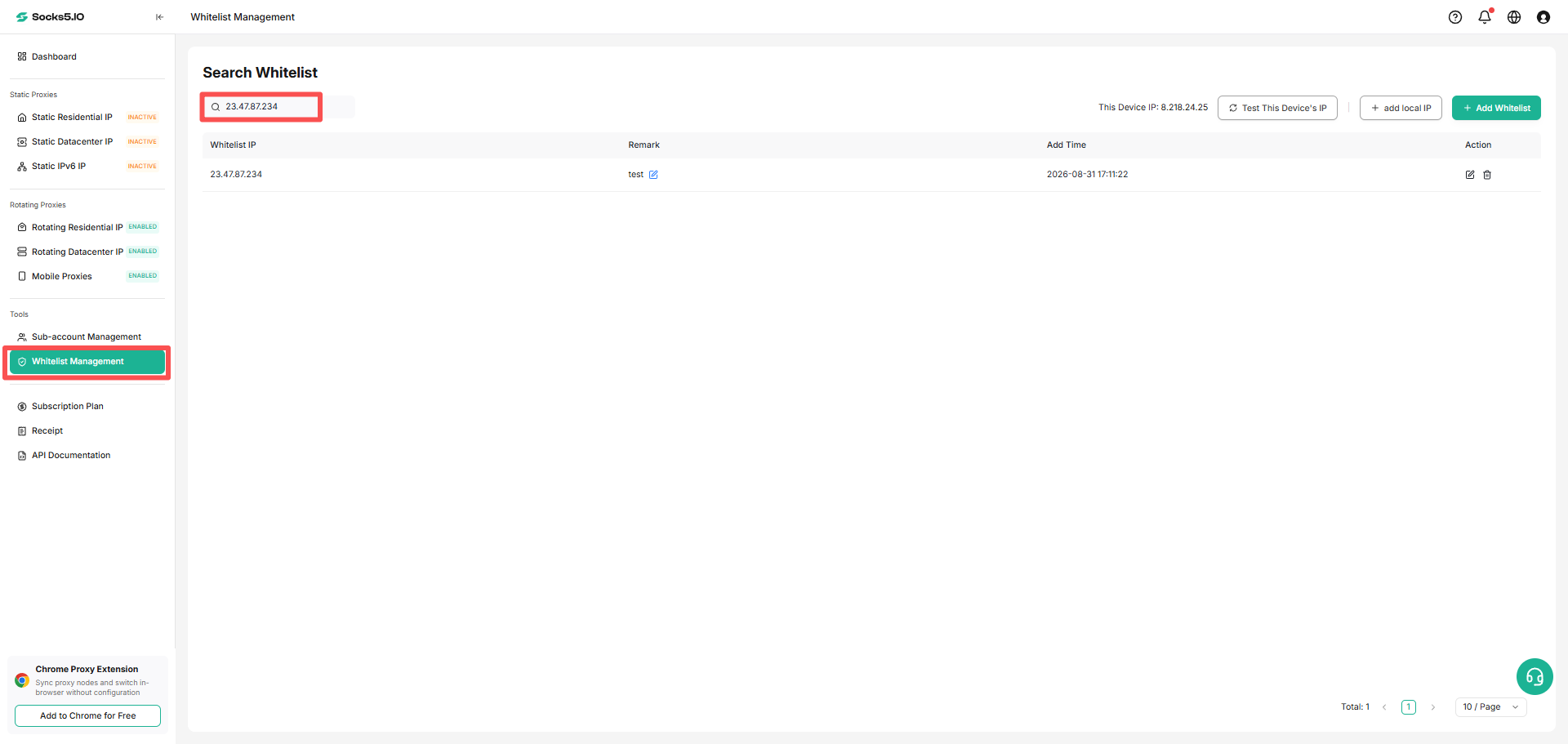
② Accurate IP positioning
Enter the complete IP address to directly locate a specific whitelist entry
Whitelist addition specifications
- Only IPv4 format addresses are accepted (example:
192.168.1.1) - Must add your own IP address to avoid using third-party IPs such as proxy/VPN *Maximum total number of whitelist IPs: 10
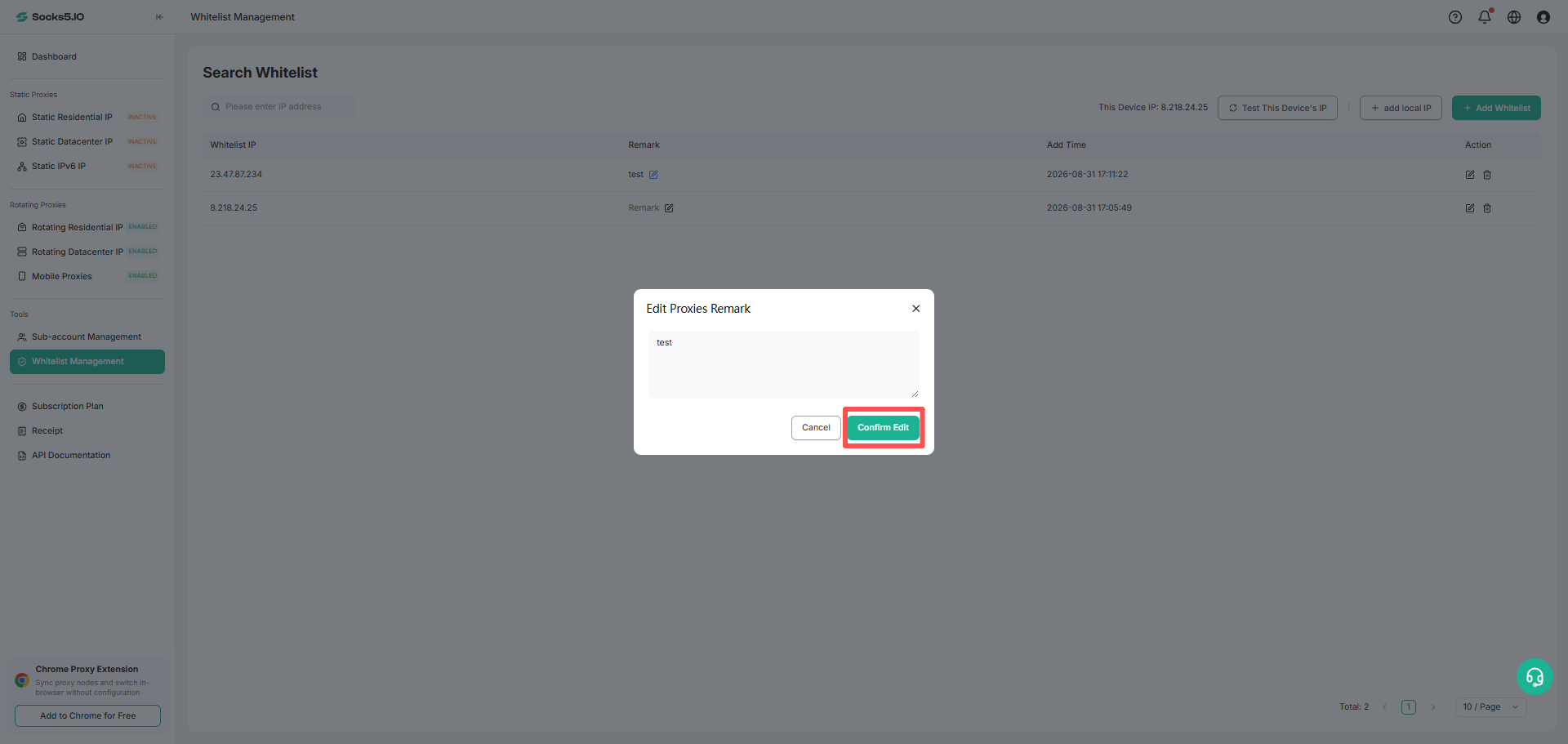
Edit a whitelist remark
Click the Edit icon for a whitelist entry, update the remark, and confirm the change.
Get IP
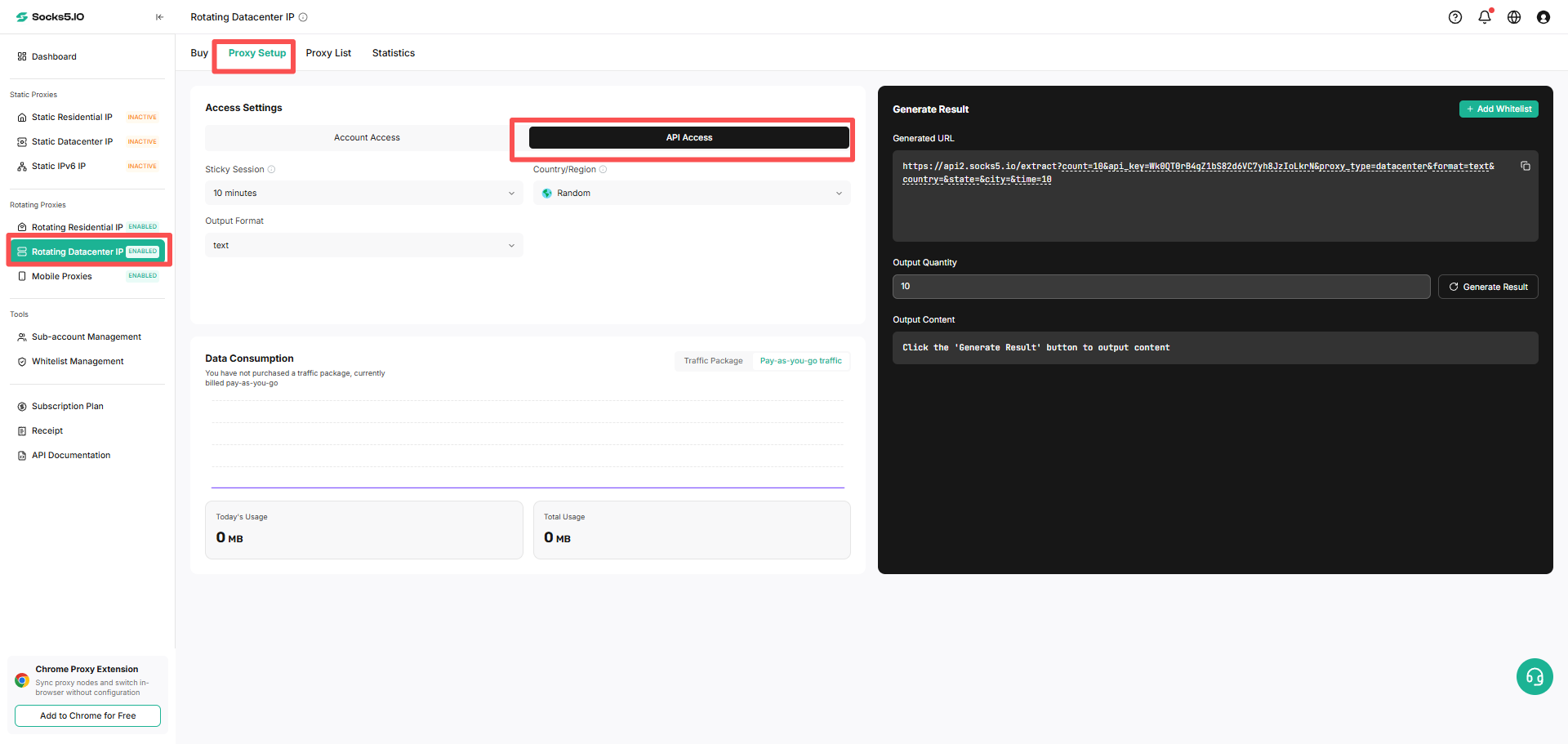
① Open Rotating Datacenter IP and select Proxy Setup to open the proxy configuration page;
② Authentication method: Select API access
③ Location Setting: The system automatically assigns the optimal access point based on the selected proxy region, and supports manual selection of the target country through the drop-down menu.
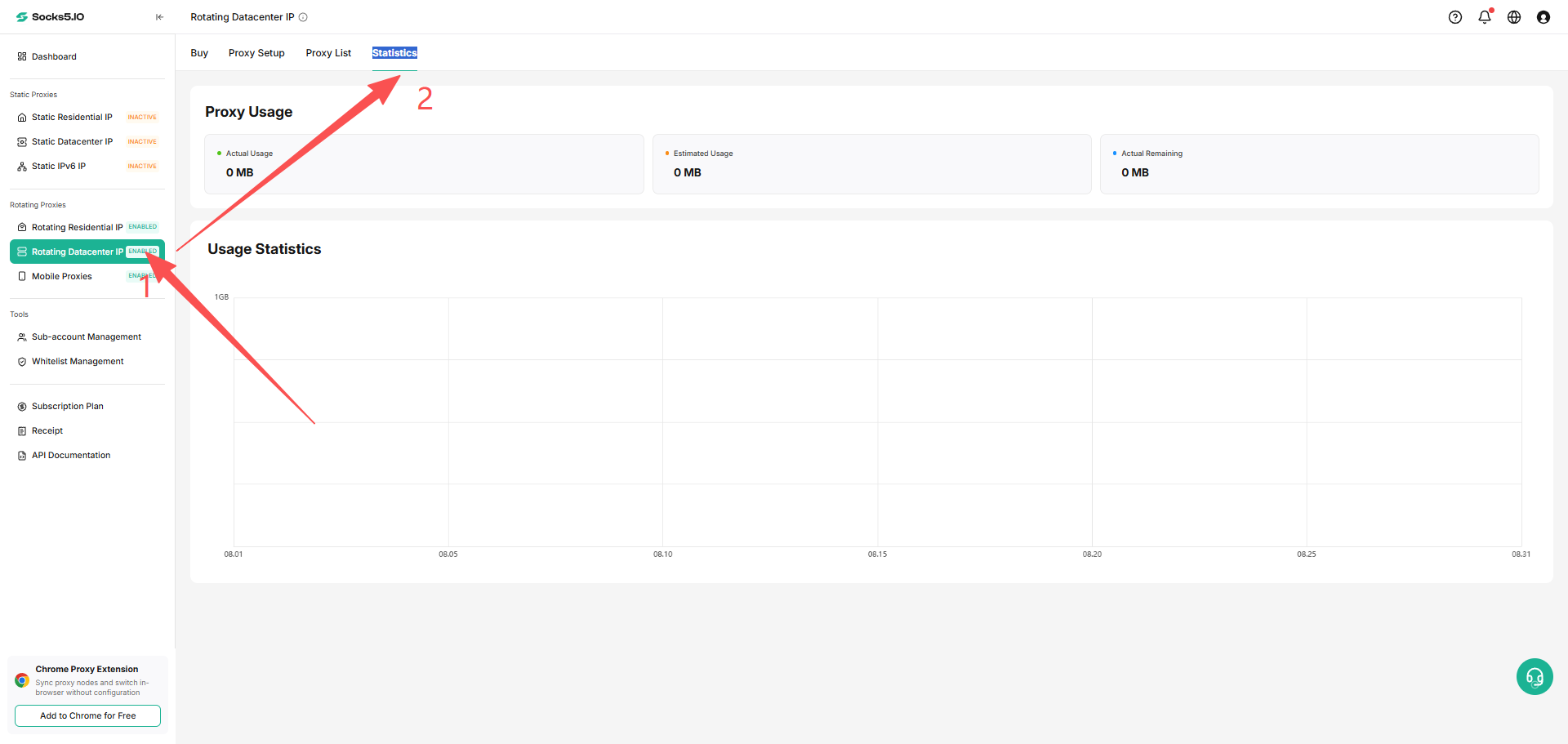
Usage Statistics
You can view Rotating Datacenter IP usage statistics in the Socks5 dashboard by opening Rotating Datacenter IP → Statistics. Filter traffic data by time and Account Level.