#Account and password authentication
This guide provides the basic information and operational procedures required to access the Socks5 Rotating Residential IP service through account and password authentication.
Purchase Package
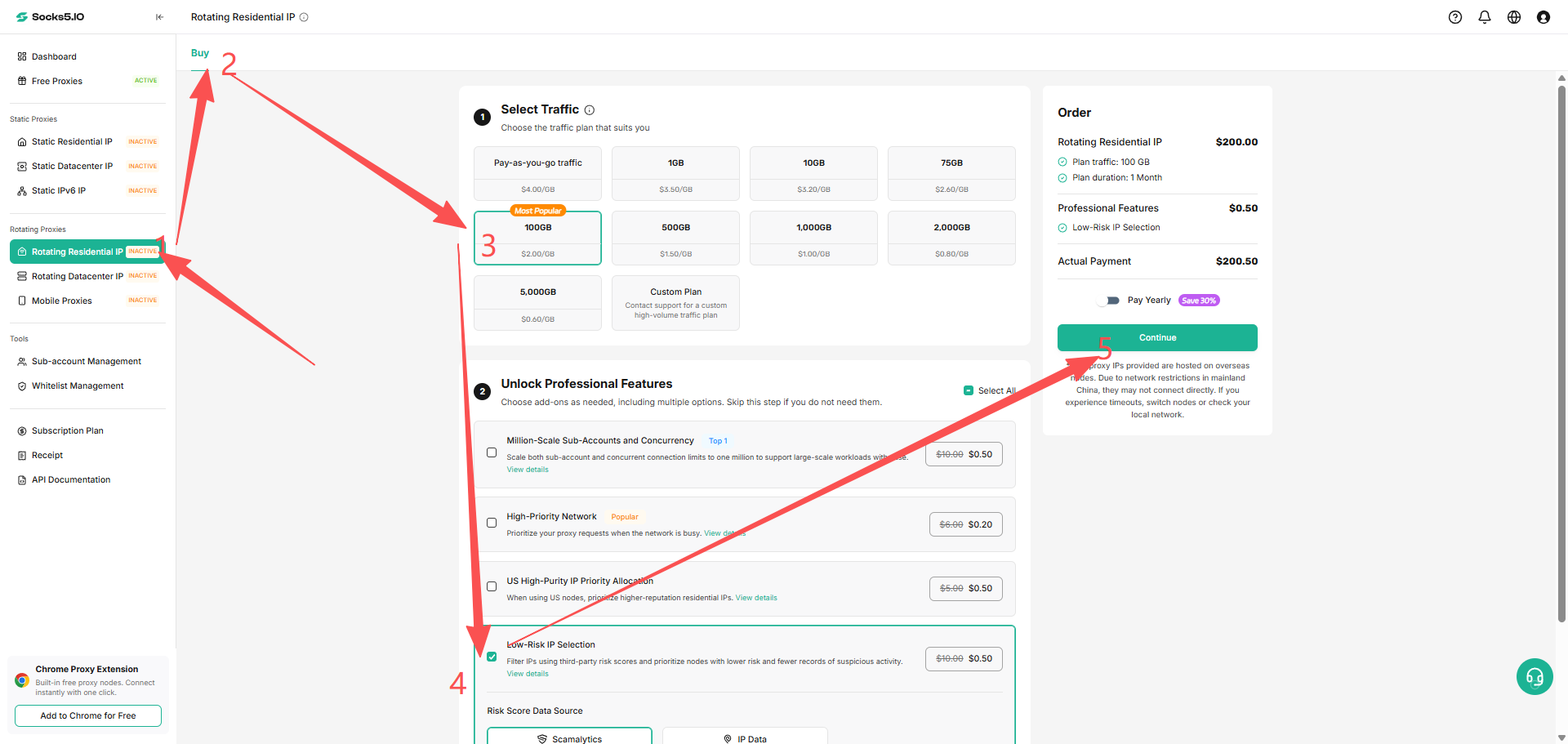
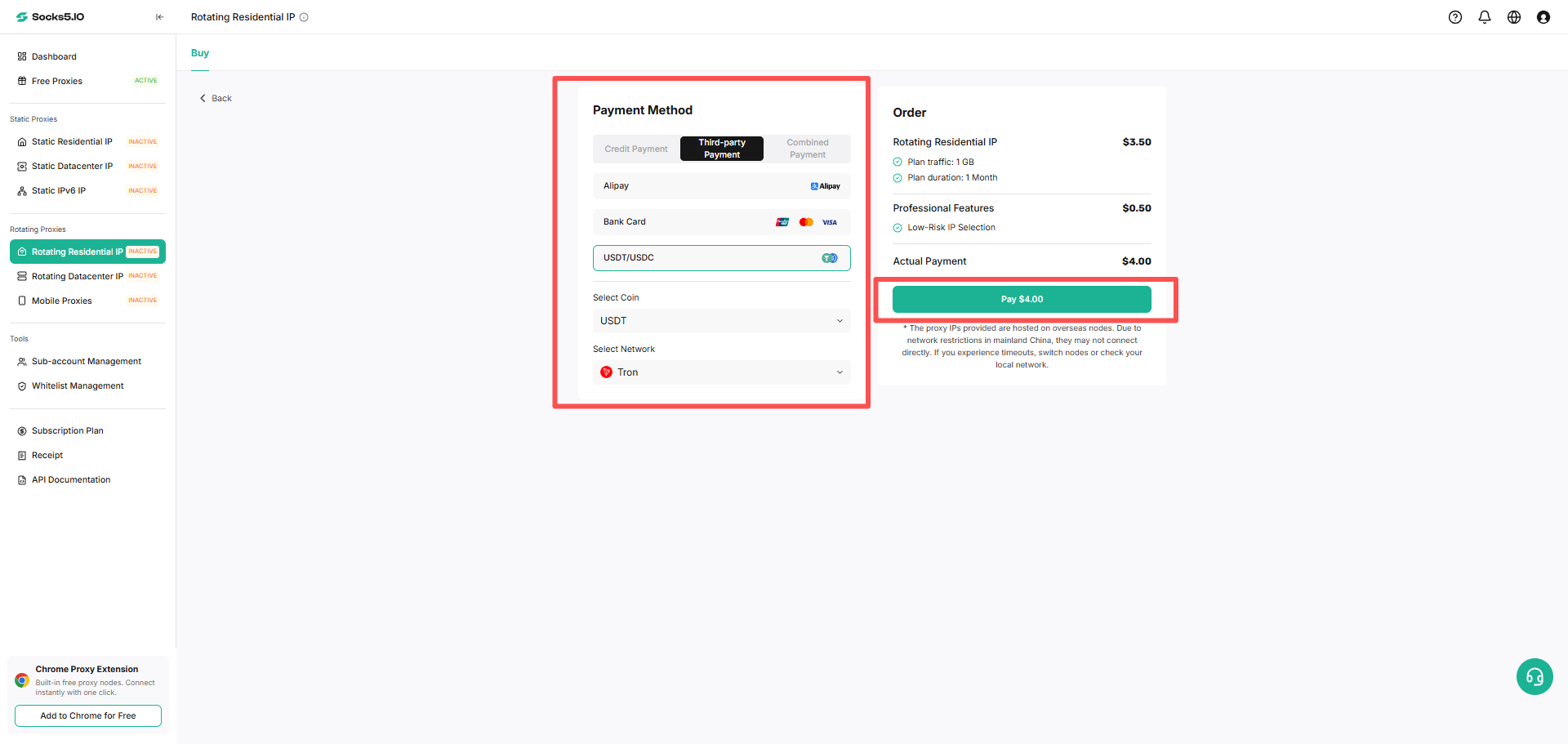
From the dashboard, select Rotating Residential IP, open the Buy tab, choose the package that meets your needs, and complete payment to activate the service.
Agent account setting
Create account
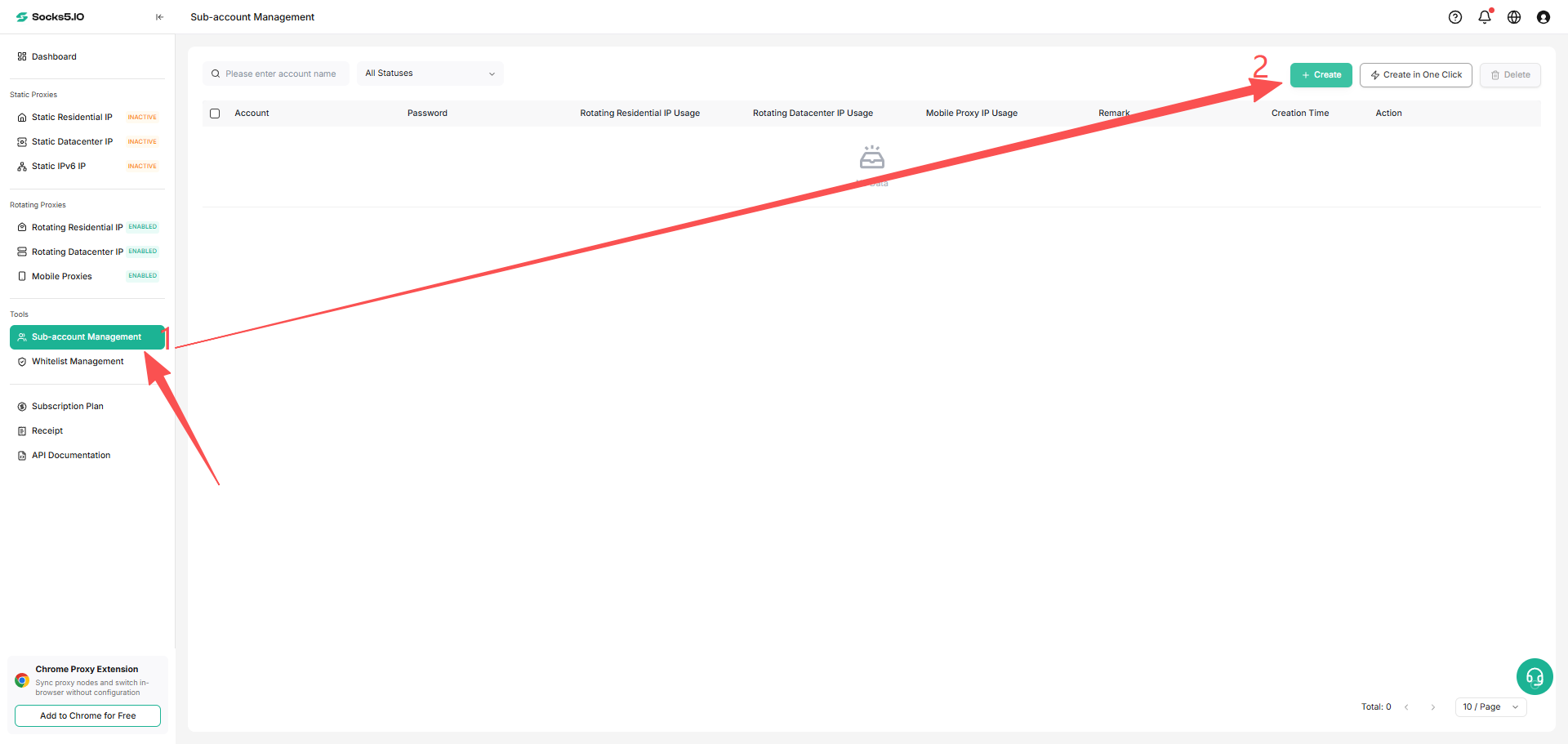
In the user dashboard, navigate to Sub Account Management and click the Add button to create a new agent user. When you need to create quickly, use the one-click new function, and the system will automatically generate an account name and password.
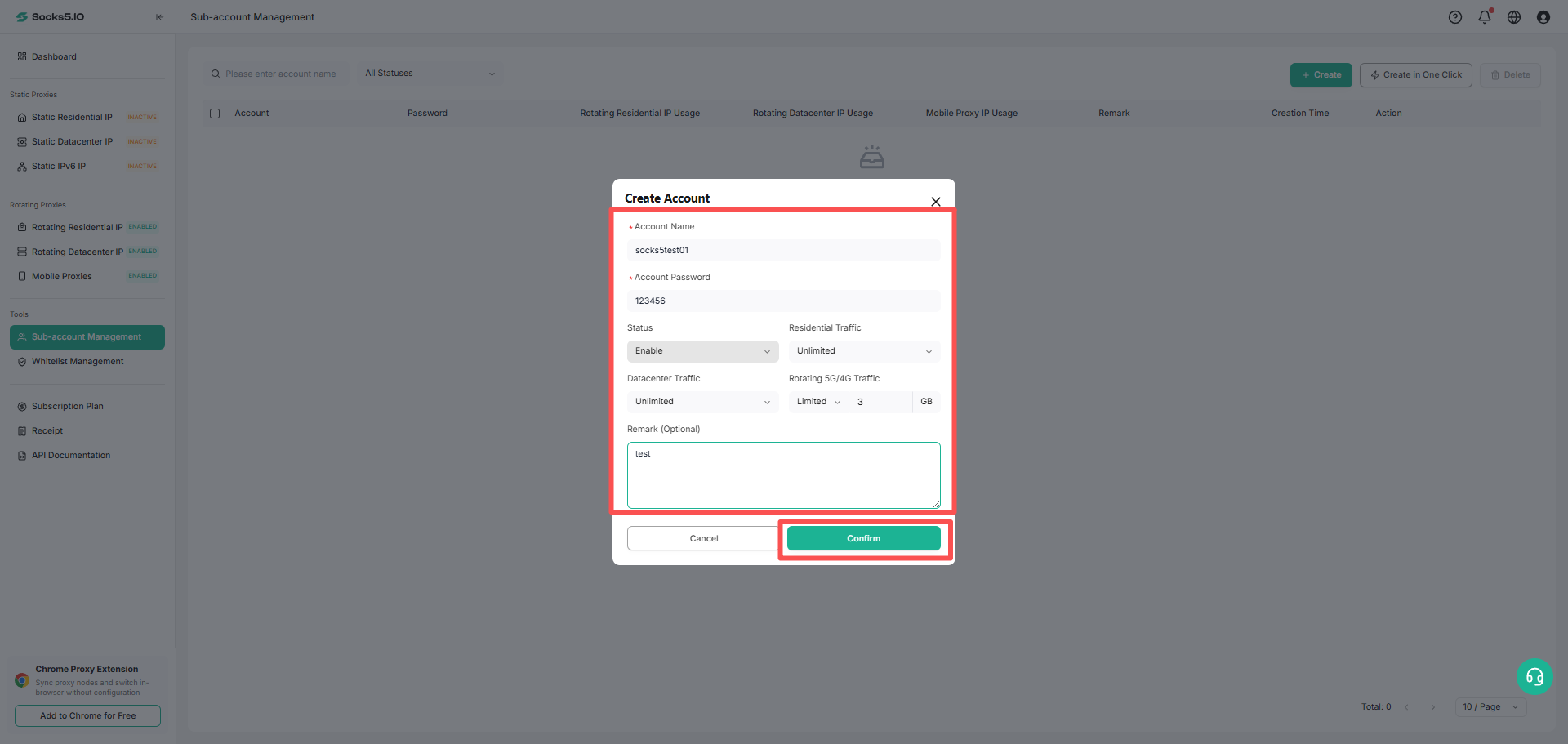
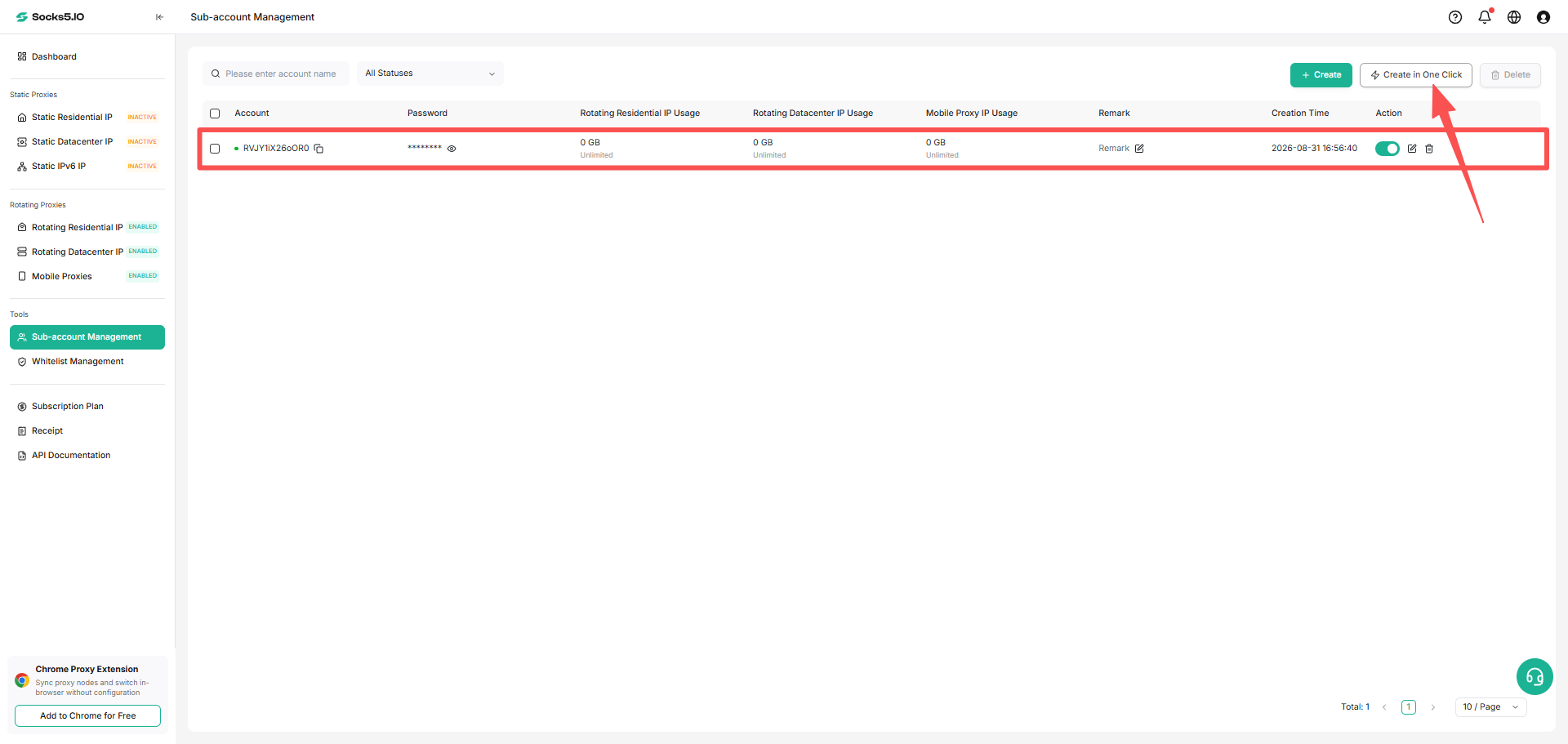
After clicking Add, set the agent username and password in sequence, select the account status (enabled or disabled), and configure the usage limit (unlimited or limited). You need to set a specific traffic limit (in GB). After completing the configuration, save will take effect.
Manage Account
① Exact user Search
Enter username to directly locate a specific proxy user account
② Account information Edit
Click the Edit button to update username, password, enabled/disabled status, usage limit and remarks
③ Account Delete operation
Single account deletion: Click the Delete button in editing
Get agent
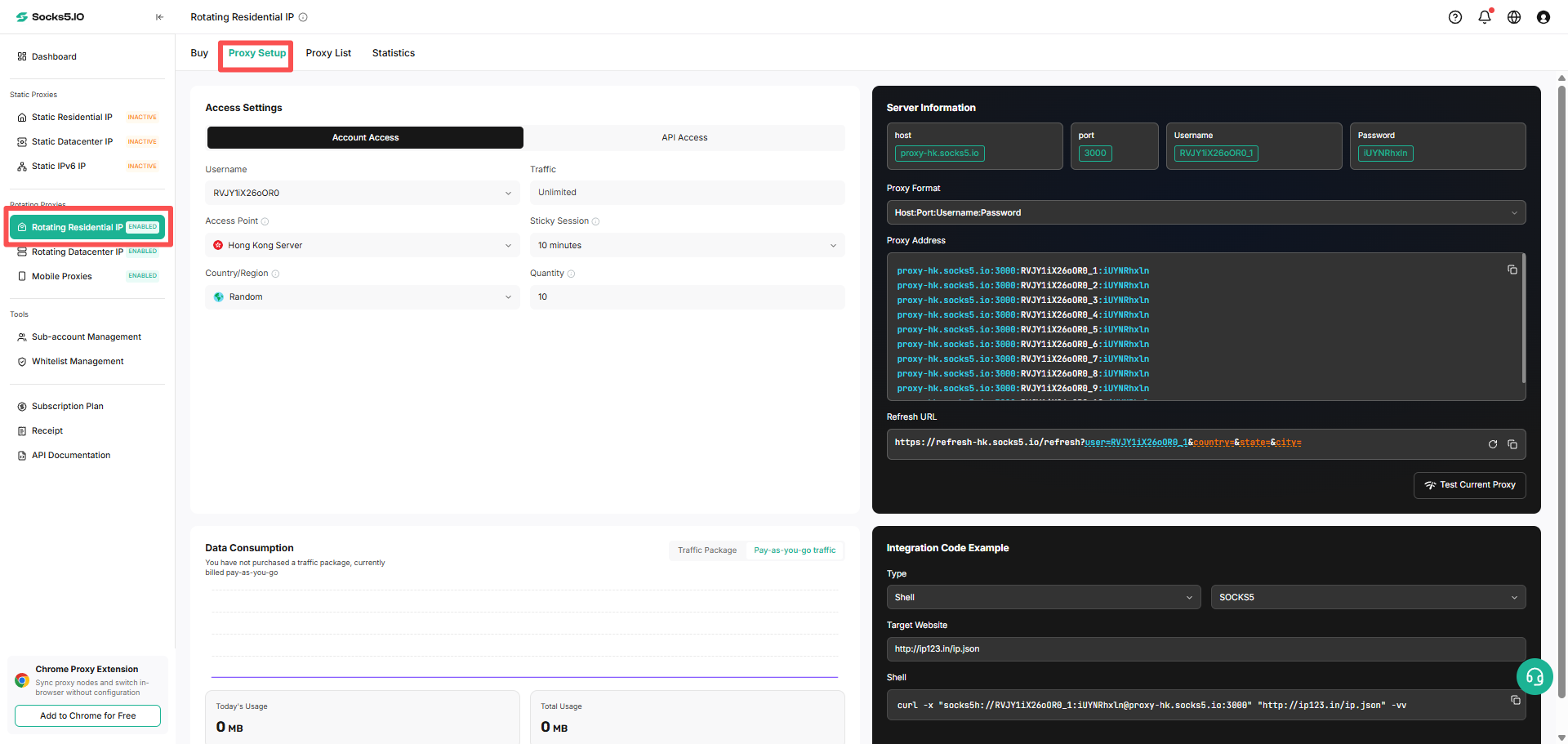
① Open Rotating Residential IP and select Proxy Setup to open the proxy configuration page;
② Authentication method: Select the account and select the proxy user you want to use in the drop-down list of the user name. If you have not created an account yet, please click [Add Now] to create it
③ Location Settings: The system automatically allocates the optimal access point based on the selected agent area, and supports manual adjustment through the drop-down menu or selecting the target country, state, and city in the authorization field.
Example:
curl -x "http://Username_74224:Password@proxy-as.socks5.io:3000" "https://ip234.in/ip.json⑥ Output format:
The system will generate a single string proxy credential based on your configuration in the format: proxy-host:proxy-port:proxy-username:proxy-password
Select the output format, set the number of proxies and specify the connection protocol as needed to generate and enable proxies
Tips: Please note: The generated Agent Authentication Username (the technical credentials used to verify identity when the program calls the proxy service) is independent of your management account username (dashboard settings). The agent username is exclusively used to execute agent operation instructions, and the two cannot be mixed.
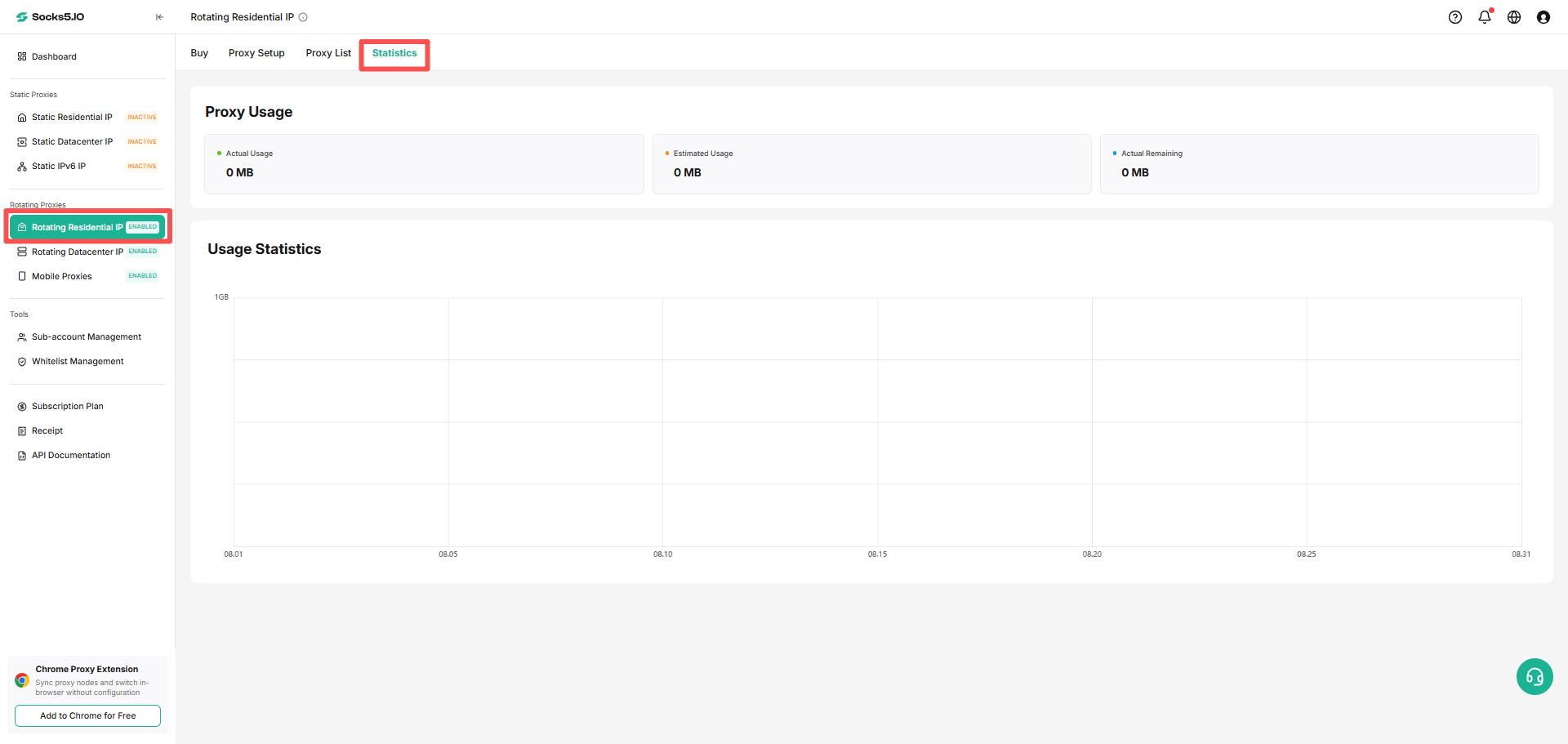
Usage Statistics
You can view Rotating Residential IP usage statistics in the Socks5 dashboard by opening Rotating Residential IP → Statistics. Filter traffic data by time and Account Level.