
MuLogin
MuLogin is a professional browser profile management tool designed for efficient management of multi-platform business accounts. When paired with Socks5's powerful proxy solution, users can significantly improve the anonymity, security and efficiency of network operations. This guide will detail how to integrate Socks5 residential proxy with MuLogin.
Preparation
Before you begin please make sure:
- Have purchased a valid Socks5 account and activated the required proxy type *MuLogin software has been installed on the local system
**Why choose MuLogin vs Socks5 proxy? **
MuLogin Advantages:
Designed specifically for multi-account management, it is especially suitable for corporate users who need to operate social media accounts in batches. Supports multi-browser environment configuration, effectively prevents account association blocking, and provides stable support for both automated operations and account protection.
Socks5 proxy advantages:
Provides various service types such as residential proxy and data center proxy. Residential agents can simulate real user behavior and cover IP nodes in multiple regions around the world; data center agents have faster speeds and higher stability, and are suitable for high-frequency and large-traffic operation scenarios.
Step-by-step integration guide
The proxy server acts as an intermediary between the device and the Internet, hiding the real IP and enabling anonymous browsing. When combined with MuLogin, you get the following enhancements:
- Visit the MuLogin official website and click [Download] to install the software. FREE TRIAL
- Open MuLogin and click the [Add Browser] button.

- Enter the basic configuration page and scroll down to the proxy settings module.
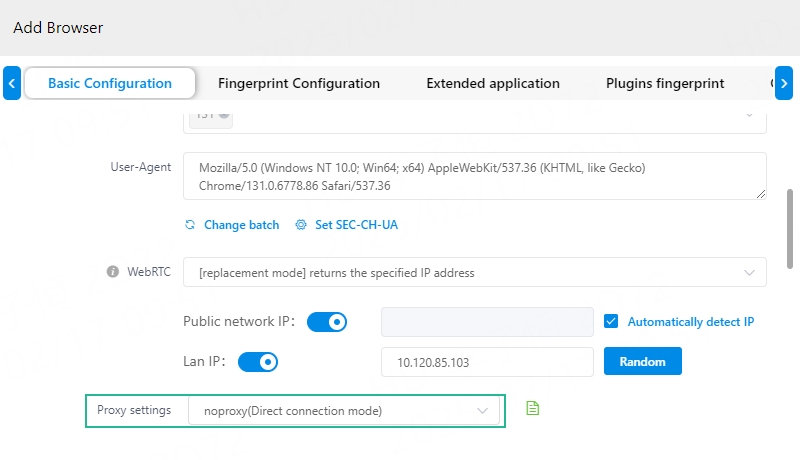
- Select the agency agreement type and fill in the corresponding information.
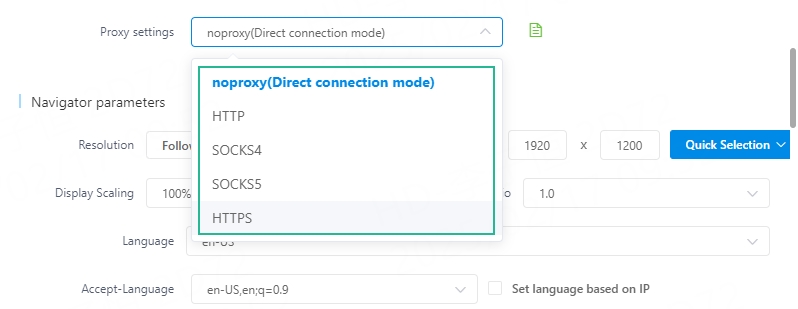
- Configure the proxy type, IP address, port and authentication information:
- IP address: proxy-as.socks5.io
- Proxy port: 3000
- Proxy type: HTTP/HTTPS/SOCKS5
- Username: socks5-customer
- Password: thordata-username-password combination
- After filling in, you can click [Detect] to verify the agent availability. The system will display the details of the country/region to which the IP belongs.
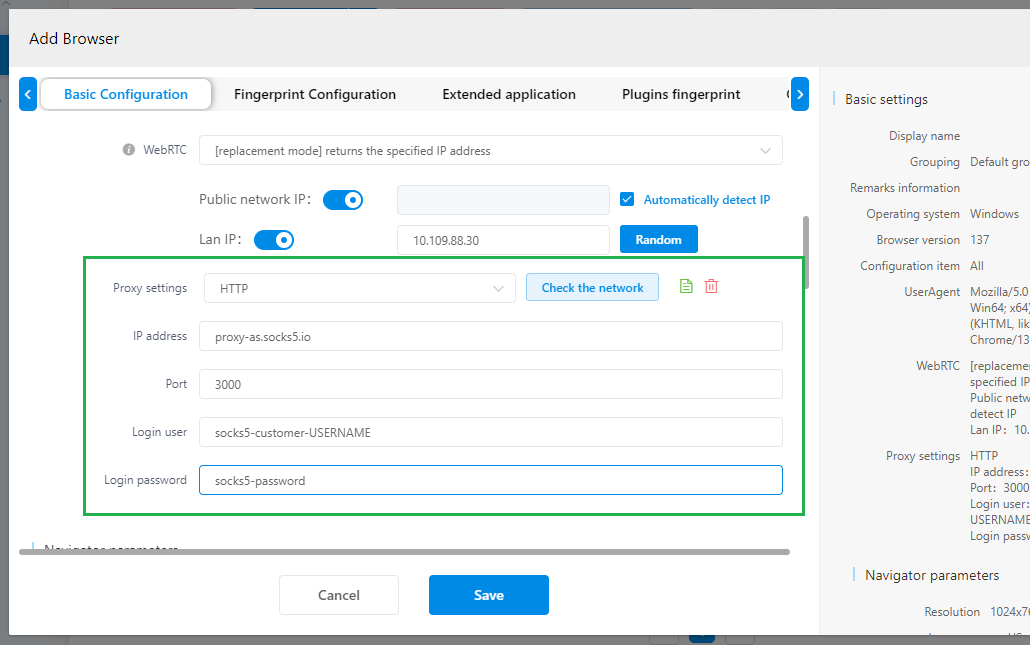
- After filling in all the information, click [Save] at the bottom to apply the settings.

- Finally check the network configuration to ensure that the proxy information is correct and runs smoothly
After completing the settings, you can securely manage multiple business accounts through MuLogin, effectively avoiding robot detection and avoiding the risk of account blocking due to frequent logins.
Conclusion
The combination of MuLogin and Socks5 proxy is an ideal solution to avoid browser detection and safely operate multiple accounts. We encourage you to experience for yourself how this solution can revolutionize your business account management in a safe and efficient way. If you encounter problems during the setup process, please feel free to contact [email protected] for technical support.